Employee Offboarding IT Checklist: Remove Access and Preserve Business Data
/ Key takeaways
- The employee offboarding IT checklist
- Find the access that sits outside the main account
- What happens to a former employee's email and files?
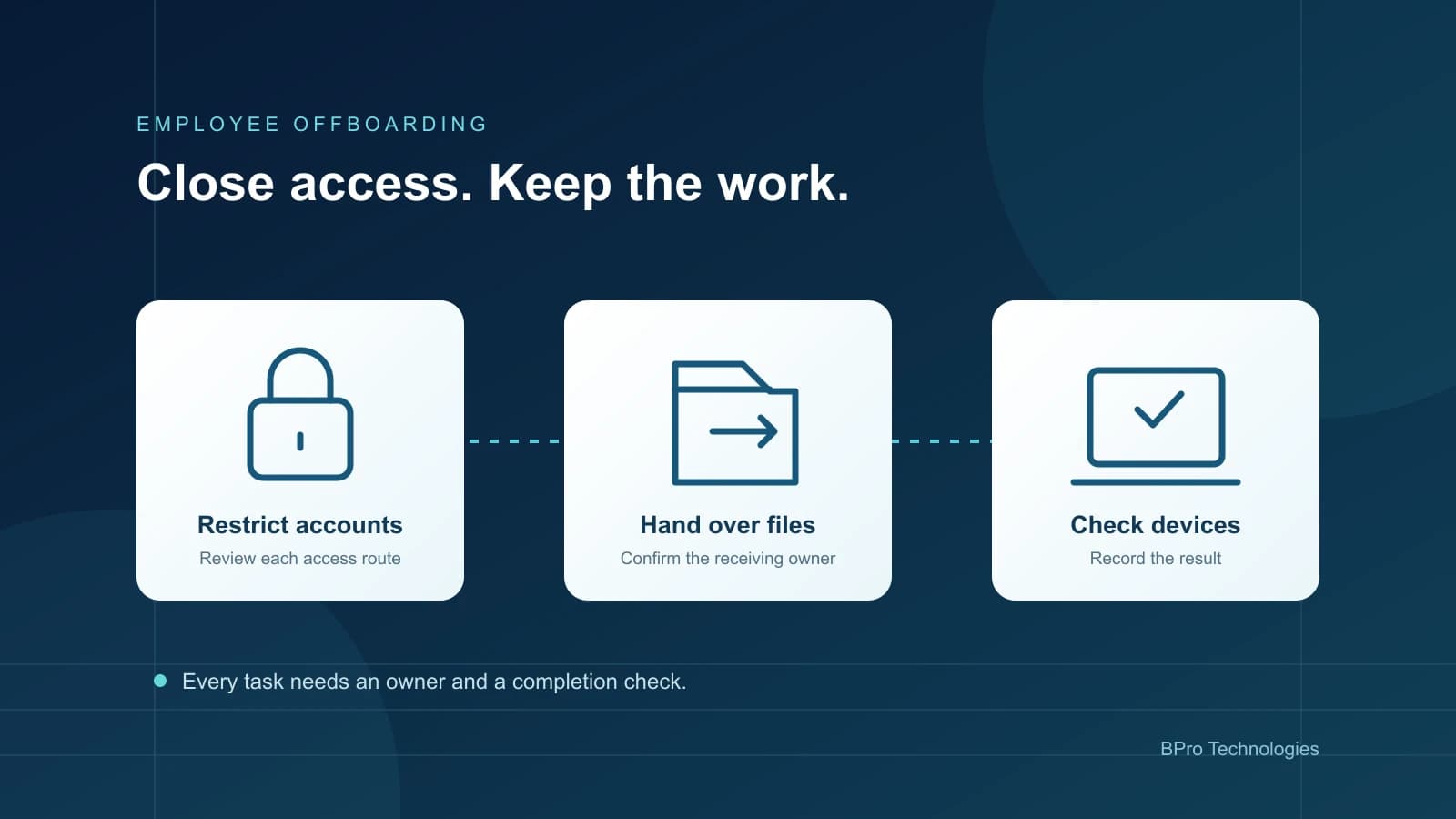
An employee offboarding IT checklist records how a business removes a departing employee's access, preserves the records it needs and recovers its equipment. HR or a manager confirms the departure; IT carries out the authorised account and device changes; the relevant data owner decides who should receive business files. Each task needs a completion check.
Returning a laptop does not close a browser session on another device. Blocking a Microsoft 365 account does not necessarily remove a separate login to an expenses app. Start with an inventory of the person's accounts and equipment, then work through it. Record anything you cannot verify.
The employee offboarding IT checklist
Use this as a starting record for a planned departure. For an urgent or disputed exit, the authorised business owner should coordinate the timing with HR and IT. Do not delay access restrictions while waiting for routine equipment collection, or delete records that may need to be preserved.
| Task | Responsible owner | Completion evidence |
|---|---|---|
| Confirm the person, departure time and instructions | HR or authorised manager | Approved request with the exact account and effective time |
| Identify accounts, devices and business records | IT, manager and data owners | Account and asset list, including separately managed apps |
| Restrict sign-in and review active sessions | Authorised administrator | Actions recorded; session and application exceptions checked |
| Preserve and hand over required email and files | Data owner approves; IT implements | Destination, authorised recipients and access checked |
| Review privileged and shared access | IT and application owners | Roles removed; shared secrets or service dependencies reviewed |
| Recover or retire equipment and work data | Asset owner and IT | Return record or managed-device action with its result |
| Review licences, recurring tasks and integrations | IT, finance and application owners | Licences reassigned or cancelled after dependency checks |
| Close the request or assign remaining work | Offboarding coordinator | Completion record with exceptions, owners and next review dates |
Find the access that sits outside the main account
Check the identity platform, email, remote access, line-of-business software, cloud services and any administrator roles. Ask the manager which applications the employee used, then compare that list with available account and device records. Include supplier portals and company social accounts where relevant.
Single sign-on helps centralise access, but an application may also allow a separate password, token or recovery method. Review those routes rather than assuming that disabling one identity closes everything. If the person administered scripts, integrations or shared credentials, identify the business dependency before rotating or removing them. Give unresolved access a named owner.
What happens to a former employee's email and files?
Decide what the business needs to keep and who is authorised to receive it before deleting an account or removing licences. Access to a person's mailbox should have a business reason and appropriate approval. Check retention requirements or preservation instructions with the responsible owner; this checklist does not set a legal retention period.
In Microsoft 365, Microsoft documents separate steps for restricting access, preserving mailbox content, handing over OneDrive files and managing licences. Forwarding new messages and converting a mailbox to a shared mailbox serve different purposes. Its guidance says not to delete the account that anchors either arrangement. Check current licensing and retention requirements for your configuration before making the change.
Have the receiving owner check the transferred files and permissions. A successful transfer job does not tell you whether the sales team can open the proposal they need on Monday. For Google Workspace or another platform, use that platform's current handover and retention procedures; Microsoft steps should not be applied unchanged. BPro's Google Workspace support and Microsoft 365 support cover the relevant administration context.
Check company equipment and personal devices separately
Record the return of company equipment, its condition and what happens next. Check whether business records must be preserved before a device is erased or reassigned. An unavailable laptop should remain an open action, with the access risk considered separately from the collection arrangements.
For personal devices, confirm ownership, the management controls in place and authority for the proposed action. Removing managed work data differs from wiping an entire device. A queued removal command also differs from a completed one, especially if the device is offline. Previously downloaded or exported copies may sit outside those controls. The MDM versus MAM guide explains the distinction.
Which tools secure employee offboarding processes?
The useful tools depend on where access lives. An identity platform handles central accounts and roles. Application administration covers separate SaaS accounts. Device or app management can control supported work data. A ticketing system keeps approvals, tasks and exceptions together. Asset records help identify missing equipment.
Before buying another product, check which of those functions your current platforms already provide. The gap may be a missing application inventory or an unassigned approval task. A tool cannot remove an account that nobody has identified, and a completed ticket should not hide a failed action in another system.
Can employee offboarding be automated?
Parts of it can. An approved departure request can trigger tasks, scheduled account actions, asset-return reminders and notifications. Start with one controlled workflow and test it with a non-production account and sample data. Confirm what happens if an application is unavailable, a task fails or the departure time changes.
Keep business approvals and exceptions visible. Automation should not decide who is entitled to read a mailbox, ignore a preservation instruction or erase a personal device because a form was completed. Require confirmation for destructive steps and record the result from each connected system. Avoid putting passwords, tokens or unnecessary employee details into logs.
Illustrative example: the account is closed, the task is not
A fictional consultancy blocks a leaver's main account at the approved time. Its coordinator finds a separate expenses login and a company laptop that has not checked in. The expenses owner removes that access, while IT records the laptop action as pending rather than marking the whole departure complete.
This is a hypothetical workflow, not a BPro customer result. The useful record is the remaining task, its owner and the next check.
What should be recorded before closing the request?
Keep the approved departure time, the systems checked, the changes made and the person who checked them. Record where business data went, who received access and what remains unresolved. Use restricted records for sensitive details; a broadly shared checklist should not contain credentials or personal information that other staff do not need.
- Account restrictions and relevant sessions have been checked.
- Required business records have an approved owner and destination.
- Company equipment is returned or has an assigned recovery action.
- Device and application exceptions are recorded rather than assumed complete.
- Licence changes follow preservation and dependency checks.
- Remaining tasks have an owner and review date.
If internal IT and an external provider share the work, decide who coordinates the departure and who confirms completion. The co-managed escalation guide explains handoffs between teams. For ongoing account and device administration, review managed IT support or the endpoint management guide.
/ Article map
The employee offboarding IT checklist
Find the access that sits outside the main account
What happens to a former employee's email and files?
Check company equipment and personal devices separately
Which tools secure employee offboarding processes?
Can employee offboarding be automated?
Sources
Frequently Asked Questions
What is an employee offboarding IT checklist?
It is a record of the account, data, device and licence tasks required when someone leaves. It identifies who approves and performs each action, how completion is checked and who owns any exceptions.
Can I automate employee offboarding?
You can automate supported account actions, task creation, reminders and reporting from an approved request. Test failures and timing changes, keep approvals visible and confirm the result in each system. Destructive actions and data access require appropriate authority.
Does blocking a Microsoft 365 account remove every application login?
Do not assume so. Review separately managed accounts, application sessions, tokens and recovery routes. The result depends on each application's identity integration and session behaviour.
Should I delete the account as soon as an employee leaves?
Restrict unauthorised access at the approved time, but check data preservation, mailbox arrangements, licences and dependencies before deletion. Microsoft says to retain the account that anchors forwarding or a shared mailbox. Follow current platform guidance and any preservation instructions.
Which tools help secure employee offboarding?
Identity and application administration, device or app management, asset records and a task system can help. Choose around the systems you use and verify that each action completed. No single tool establishes that every access route has been removed.
/ Choose the next step
Move from article guidance to a practical review path.
Pick the route that best matches the issue behind the article so the next conversation starts with the right scope.
Account support
Review Microsoft 365 and device access
Discuss account administration, file handover, device controls and the checks needed when someone leaves.
Support responsibilities
Give staff changes a clear owner
Tell us who handles accounts and devices today, which platforms you use and where the handover gets stuck.